Let’s be honest. You don’t want to download software just to change a file from PNG to JPG. Nobody does. And you definitely don’t want to create an account, verify your email, sit through a tutorial, or deal with a watermark slapped across your converted image just because you needed to swap one format for another.
That’s exactly why a truly free online image converter matters. You open it, upload your files, pick where you want to go, and you’re done in under a minute. No nonsense.
This page is that tool. And this article is going to explain everything you need to know about the formats it supports — PNG, JPG, WebP, and GIF — so you always know which one to pick, and why.
What Is an Image Converter and Why Do You Actually Need One?
An image converter does one job: it takes a file in one format and spits it back out in another. Sounds simple, and the process itself is. But the reason people need converters is a little more interesting.
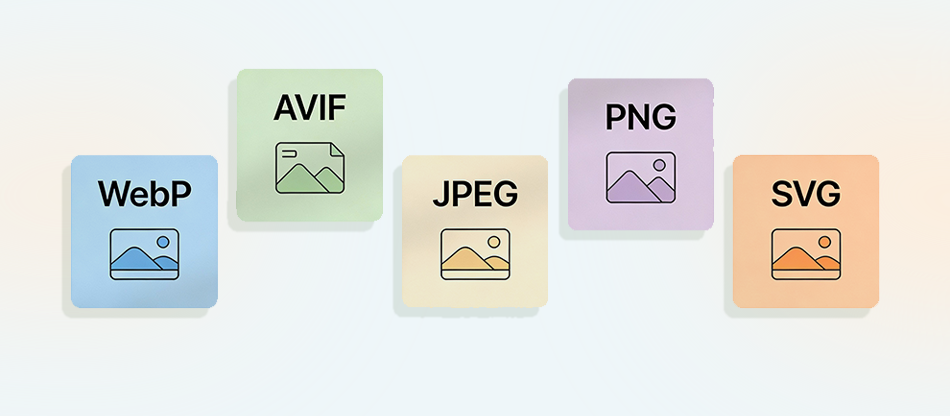
Different formats were invented to solve different problems. JPG was designed to compress photographic images so they’d fit on early digital storage. PNG was built for crisp graphics with transparency. GIF was created for animation. WebP came later, from Google, trying to do what JPG and PNG both do but in a smaller file size.
None of them is universally perfect. Each one has a situation where it shines and a situation where you’d regret using it. The format you receive a file in isn’t always the format you need it in. That gap is exactly where an online image converter earns its keep.
Common real-world scenarios include a client sending a WebP file that won’t open in an older design tool, a developer needing PNG images converted to JPG to reduce page load weight, a blogger trying to get a GIF into PNG format for a clean thumbnail, and a web designer batch-converting a folder of JPGs into WebP to hit Google’s Core Web Vitals targets.
In every case, you need a format change. And you need it fast, without friction.
PNG to JPG — The Most Common Conversion and What You Should Know
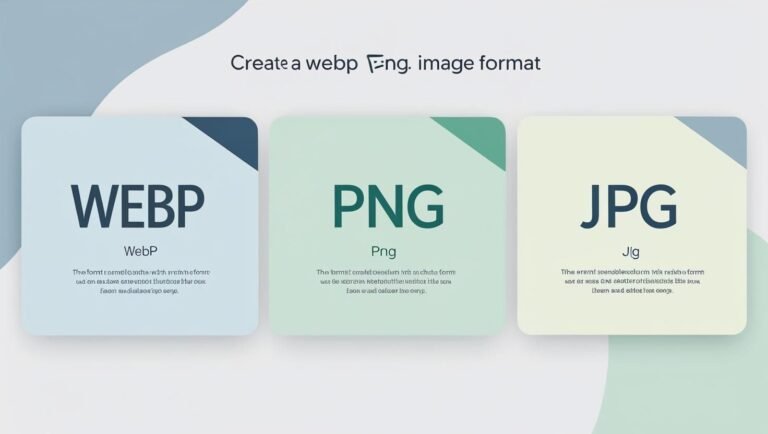
PNG to JPG is the number one conversion people run every day, and for good reason. PNG files can be enormous. A high-resolution screenshot saved as PNG might be 4–8 MB. The same image converted to JPG at 90% quality could drop to 400–600 KB with zero visible difference to the human eye.
That’s a massive size saving. For websites, that matters directly — smaller images load faster, and faster pages rank better in Google. For email attachments, it means the file actually sends without bouncing. For sharing on WhatsApp or social media, it means nobody gets a buffering spinner.
The one thing you need to know before converting PNG to JPG is transparency. PNG supports transparent backgrounds. JPG does not. When you convert a PNG with a transparent background to JPG, those transparent areas will be filled in — usually with white. If your image has a transparent background that you need to keep, JPG is the wrong destination. Stay in PNG, or go to WebP which also handles transparency.
For everything else — photos, screenshots, product images, illustrations without transparency — PNG to JPG is a smart move.
JPG to PNG — When You Need Quality Back
Going the other direction is less common but still very useful. The main reason people convert JPG to PNG is to get a lossless format for further editing.
JPG is a lossy format. Every time you save a JPG, it compresses the image a little more, throwing away some data permanently. If you open a JPG in a photo editor, make a small change, and save it again as a JPG, you’ve just compressed it twice. Do this five times and you start to see visible degradation — color banding, blurry edges, weird artifacts around high-contrast areas.
Converting to PNG locks in a snapshot of the current image without further compression. From that point, any edits you save stay in PNG and stay lossless. It’s a common step in professional photo workflows — receive as JPG, convert to PNG for editing, export back to JPG only for the final delivery.
The tradeoff is file size. A PNG of a photograph is much larger than the JPG equivalent. Use it when quality and editing flexibility matter more than storage space.
PNG to WebP — The Web Designer’s Best Friend in 2026
If you run a website and you’re not converting images to WebP, you’re probably leaving page speed on the table. WebP is Google’s modern image format, and it compresses images significantly better than both JPG and PNG while maintaining comparable visual quality.
Studies have shown WebP files can be 25–35% smaller than equivalent JPGs, and up to 50–70% smaller than PNGs with similar visual output. For a website that loads dozens of images per page, that’s the difference between a 3-second load time and a 1.5-second load time. In SEO terms, that’s the difference between ranking and not ranking.
WebP also supports transparency, just like PNG. So if you’ve been using PNG specifically for logos, product photos with transparent backgrounds, or icons, you can switch to WebP and get the same transparency with a much smaller file.
Browser support for WebP is now over 96% globally. Chrome, Firefox, Safari, and Edge all handle WebP natively. The holdouts are edge cases — old browsers and some specialist tools. For general web publishing in 2026, WebP is the safe and smart choice.
Our free image converter lets you go from PNG to WebP in one step. Upload, select WebP as the target, convert, and download. If you have a whole folder of PNGs, upload them all together and grab the results as a single ZIP file.
WebP to JPG — For Compatibility When You Need It
WebP is great for the web, but it doesn’t play nicely with everything. Older image editors, some email clients, certain print workflows, and a handful of social platforms still don’t handle WebP correctly. If you’ve downloaded an image from a modern website and found you can’t open it in your usual software, there’s a good chance it’s a WebP file.
Converting WebP to JPG gives you something universal. JPG opens everywhere — every operating system, every image editor, every email client. It’s the universal language of digital images.
One thing to keep in mind: both WebP (in its lossy mode) and JPG are lossy formats. Converting between two lossy formats involves re-encoding, which technically introduces a tiny amount of additional quality degradation. At high quality settings (90%+), this is imperceptible. For everyday use — sharing, emailing, uploading — the result looks identical to the original.
If you need a truly lossless output from a WebP file, convert to PNG instead. PNG captures the image data exactly as-is without further compression.
GIF to PNG — Cleaning Up Old-Format Images
GIF is one of the oldest image formats on the internet, introduced back in 1987. It’s still widely used for animations, which is where it genuinely earns its place. But for static images, GIF has a serious limitation: it only supports 256 colors. For photographic images or anything with gradients, that looks terrible — you’ll see harsh banding where colors should be smooth.
Converting a static GIF to PNG gives you an immediate quality improvement. PNG supports full 24-bit color (16 million colors), so gradients look smooth, photos look accurate, and logos with subtle color variations render correctly.
The conversion is simple and the result is worth it. If you’ve inherited a library of old GIF files and want to modernize them, running them through a batch converter to PNG is a solid first step. From PNG, you can always go one step further and convert to WebP for even smaller file sizes on the web.
WebP to GIF — When Animation Compatibility Matters
WebP supports animation — it’s one of its advantages over JPG. But animated WebP files can be a problem in certain contexts. Messaging apps, older email clients, and some CMS platforms still expect GIF for animated images. If your animated WebP won’t play somewhere it should, converting to GIF solves it instantly.
Yes, GIF’s 256-color limitation applies to animated GIFs too. The result may look slightly less sharp than the WebP original, especially if the animation contains photographic content. For animations with flat colors, logos, or simple illustrations, the quality loss is minimal and the compatibility gain is worth it.
How to Use This Free Image Converter (Step by Step)
Using the converter on this page takes about 30 seconds. Here’s the full process:
- Step 1: In the “Set your conversion” section, choose your source format — PNG, JPG, GIF, or WebP — from the left dropdown.
- Step 2: Choose your target format from the right dropdown.
- Step 3: Upload your images. You can drag and drop multiple files directly onto the upload area, or click “Choose Images” to select them from your device. Batch uploading works — you can convert dozens of files in a single run.
- Step 4: Click the convert button. The tool processes your files and displays them in the results table with a preview and file size.
- Step 5: Download individual converted files by clicking the download link next to each one, or click “Download All as ZIP” to grab everything in one go.
No account required. No email verification. No watermarks on your output. The files come back as clean, standard images you can use anywhere.
Which Format Should You Use? A Quick Decision Guide
Still not sure which format is right for your situation? Here’s a fast reference:
- JPG: Best for photos, social media images, email attachments, and any image where file size matters more than perfect quality or transparency. Nearly every device and app on the planet opens JPG.
- PNG: Best for logos, screenshots, illustrations, and any image with transparent areas. Also ideal when you’ll be editing the file further and need to preserve quality across multiple saves.
- WebP: Best for any image going onto a modern website. Smaller than both JPG and PNG with comparable quality. Supports transparency. Supported by all major browsers.
- GIF: Best for animations that need broad compatibility. For static images, convert to PNG or WebP instead — GIF’s 256-color limit hurts quality unnecessarily.
Is It Safe to Convert Images Online?
This is a fair question and one more people should ask. When you upload files to an online tool, where do they go? Who has access?
Our converter processes your files on secure servers. We don’t store your images beyond the time needed to convert and return them to you. We don’t use your images for any other purpose. There’s no human review of uploaded files. The tool is automated end-to-end.
For highly sensitive images — medical scans, legal documents, confidential business materials — your best option is always a desktop application where files never leave your device. For everyday images like product photos, website assets, blog images, and personal photos, an online converter is perfectly safe and vastly more convenient.